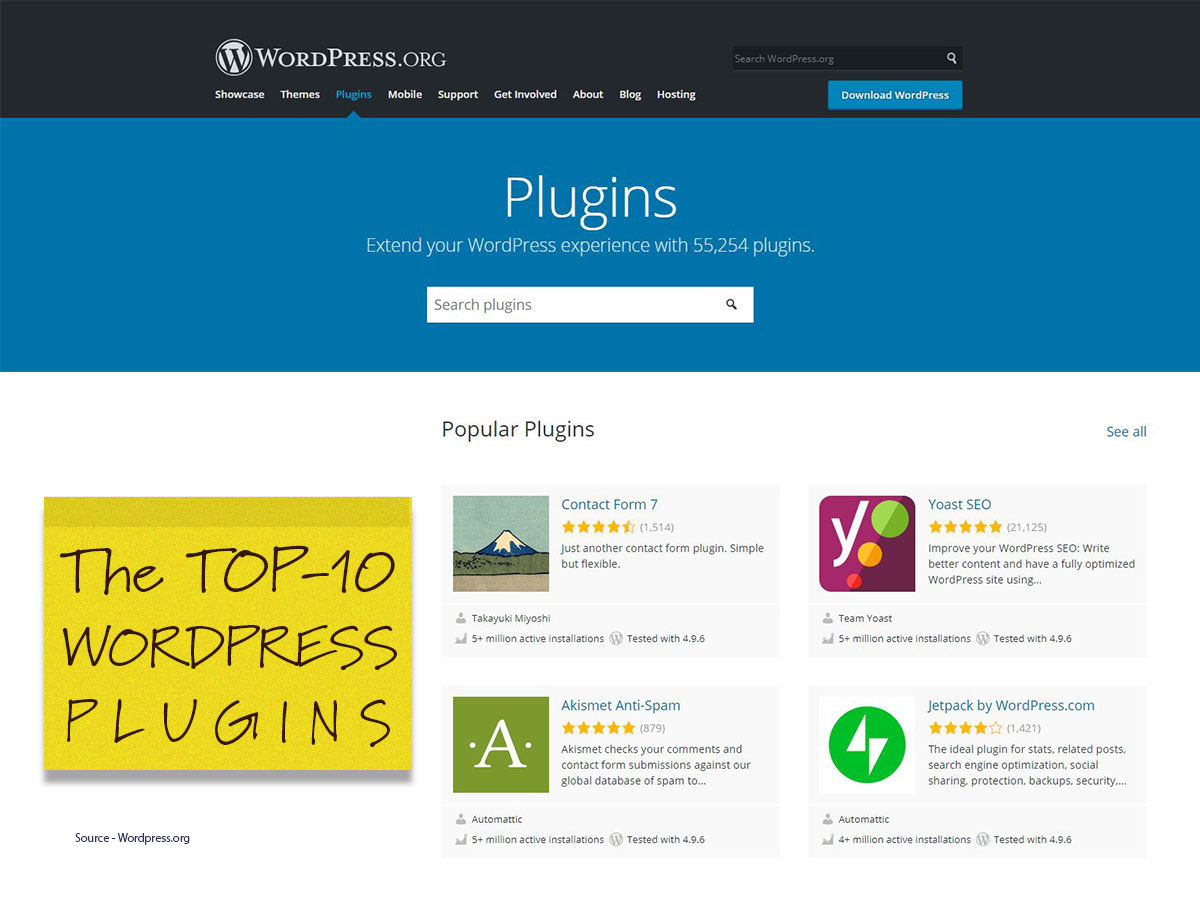
WordPress powers over 40% of all websites on the internet, and one of the key reasons for its popularity is its massive library of plugins. Plugins extend the functionality of WordPress, helping users add features without needing to code. Whether you’re a blogger, business owner, developer, or e-commerce store operator, the right plugins can significantly improve your website’s performance, SEO, security, and user experience.
In this article, we’ll explore 10 essential WordPress plugins and show you how to take full advantage of them.
1. Yoast SEO – Optimize Your Content for Search Engines
Purpose: Improves your website’s SEO by helping you write better content and optimize your site structure.
How to Use It:
- After installing, configure your site information and choose between SEO-friendly URL structures.
- Use the built-in SEO and readability analysis while editing posts to follow suggestions for keyword placement, meta description, headings, and internal linking.
- Generate and submit an XML sitemap to Google through Search Console.
- Monitor on-page SEO performance via the plugin dashboard.
Pro Tip: Use the “Cornerstone content” feature to highlight your most important posts and pages.
2. WPForms – Build Contact Forms Easily
Purpose: Allows you to create professional-looking forms (contact, survey, newsletter signup, etc.) using a drag-and-drop builder.
How to Use It:
- Install and activate WPForms Lite (free) or Pro for advanced features.
- Use the prebuilt templates to create a form quickly.
- Embed forms into posts, pages, or widget areas using shortcodes or the block editor.
- Enable email notifications to receive submissions instantly.
- Connect with email marketing tools like Mailchimp or Constant Contact.
Pro Tip: Use conditional logic to show/hide fields based on user inputs for smarter forms.
3. WooCommerce – Turn Your Site into an Online Store
Purpose: Powers over 30% of all online stores. Ideal for selling physical or digital products.
How to Use It:
- Install and run the Setup Wizard to configure payment gateways, shipping options, and product pages.
- Add products with detailed descriptions, pricing, images, and categories.
- Use WooCommerce Blocks to build product layouts visually in the Gutenberg editor.
- Add upsells and cross-sells to product pages.
- Extend with additional plugins for subscriptions, bookings, or multi-vendor marketplaces.
Pro Tip: Use WooCommerce analytics to understand customer behavior and increase sales.
4. Elementor – Design Pages Visually Without Coding
Purpose: A drag-and-drop page builder to help create stunning layouts with live previews.
How to Use It:
- Install Elementor and start editing pages using the visual interface.
- Choose from pre-designed templates or design from scratch.
- Use widgets like sliders, buttons, galleries, and testimonials.
- Style every element with custom typography, spacing, and animation.
Pro Tip: Save sections and templates for reuse across your site, saving time and ensuring design consistency.
5. UpdraftPlus – Backup and Restore Your Site
Purpose: Protects your site from data loss by scheduling regular backups.
How to Use It:
- Choose cloud storage (Google Drive, Dropbox, Amazon S3, etc.) for storing your backups.
- Set up automatic backups (daily/weekly) of your files and database.
- Restore your site easily from a backup with one click in case of failure.
Pro Tip: Keep at least three recent backups stored off-site to prepare for emergencies.
6. Wordfence Security – Secure Your WordPress Website
Purpose: Provides firewall protection, malware scanning, and login security.
How to Use It:
- Enable the firewall to block malicious traffic.
- Run regular malware scans to detect suspicious files or changes.
- Use the live traffic tool to monitor real-time visits and hacking attempts.
- Set up two-factor authentication (2FA) for stronger login security.
Pro Tip: Configure email alerts to notify you instantly if your site is under attack.
7. Smush – Optimize Images Automatically
Purpose: Compresses and resizes images to improve site speed without sacrificing quality.
How to Use It:
- Enable automatic image compression on upload.
- Use the Bulk Smush feature to optimize existing images.
- Resize images to ideal dimensions for your theme.
- Use lazy loading to only load images when they enter the viewport.
Pro Tip: Monitor your media library and avoid uploading unnecessarily large images by setting max width and height.
8. MonsterInsights – Integrate Google Analytics Seamlessly
Purpose: Connects your WordPress site with Google Analytics and provides user-friendly reports.
How to Use It:
- Use the setup wizard to authenticate with your Google Analytics account.
- View key metrics like traffic sources, page views, bounce rates, and demographics inside your WordPress dashboard.
- Enable eCommerce tracking (if using WooCommerce) to see product performance and revenue insights.
- Use outbound link tracking to see what external resources your users click on.
Pro Tip: Create custom event tracking for form submissions, downloads, and video engagement.
9. Redirection – Manage 301 Redirects and Monitor 404 Errors
Purpose: Helps manage redirects and improve SEO by fixing broken links.
How to Use It:
- Automatically create redirects when you change a URL.
- Set up manual redirects for old content or deleted pages.
- Monitor 404 errors and redirect them to relevant pages.
- Group redirects by topic or source for better organization.
Pro Tip: Combine with Google Search Console to address crawl errors efficiently.
10. LiteSpeed Cache – Speed Up Your Website
Purpose: Enhances performance through caching, image optimization, and CDN integration.
How to Use It:
- Enable page, browser, and object caching for faster load times.
- Minify CSS, JavaScript, and HTML to reduce file sizes.
- Optimize images and defer loading of JavaScript for better page speed.
- Integrate with a CDN for global content delivery.
Pro Tip: Test your website with GTmetrix or PageSpeed Insights after enabling caching features to confirm improvements.
Plugins are the backbone of WordPress customization, but the real power comes from knowing how to use them effectively. Don’t overload your site with too many plugins—use only the ones that add real value. Regularly update them and ensure compatibility with your WordPress theme and version to maintain security and performance.
By leveraging the top 10 WordPress plugins mentioned above, you can:
- Boost your search visibility
- Engage users with professional forms
- Create and run an eCommerce store
- Design custom layouts visually
- Protect your content and secure your data
- Improve your site’s speed and mobile experience
- Gain valuable visitor insights
Each of these plugins has both free and premium versions, so start with what you need, then scale up as your website grows.
Remember: Your website is only as powerful as the tools you use—and how well you use them.